Exporting PDFs from Canva
Unfortunately, Canva offers only limited options for creating a PDF that is optimally suited for professional printing.
In practice, Canva files can cause issues, such as:
- Transparency layers that may not render correctly in print
- White text that is formatted incorrectly
- Graphics consisting of many individual elements that can cause problems during printing
For this reason, we've prepared two simple guides for you:
- A guide for easily exporting PDFs from Canva
- A second guide showing how the exported PDF can be further edited in Affinity by Canva to prepare it for printing
We generally recommend that our customers use Canva primarily as a source of inspiration and create the PDF in an editor such as Affinity or Adobe.
Exporting from Canva without further processing in Affinity
- Use images with a resolution of 300 DPI in your design; this is the recommended resolution for good print results.
- Export the PDF using the "Compress PDF" option (unfortunately, this option is only available to Pro users).
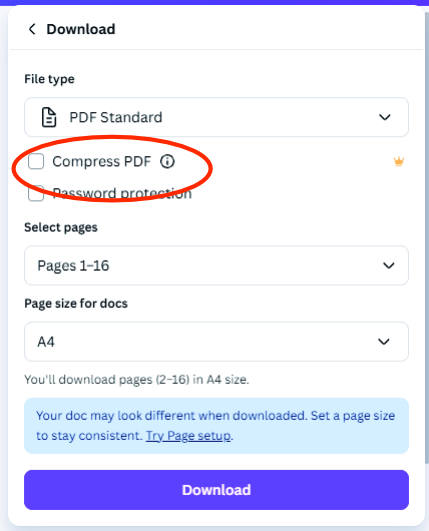
- Compressing a PDF file in Canva ensures that fonts display correctly and protects your design.
This process converts the file, along with all its layers, into a static image. This ensures that your design displays correctly everywhere and that all elements of your design are printed.
Customers can also export the content as a JPG if desired. Here, all transparencies and fonts are also preserved, though there may be limitations in resolution.
Export from Canva for further processing in Affinity
- Use images with a resolution of 300 DPI in your design; this is the recommended resolution for good print results.
- Export the PDF normally (without compression).
-
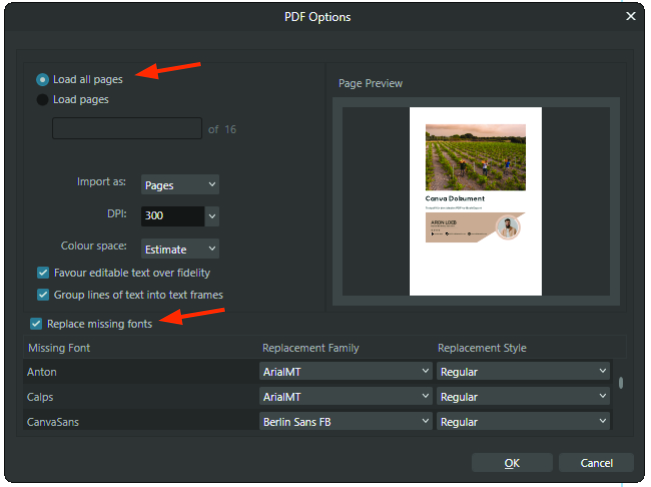
Open the PDF in Affinity:
- Load all pages
- 300 DPI
- Replace missing fonts (if you don't have the fonts selected in Canva installed on your PC, the system will display them using a different font anyway)
-
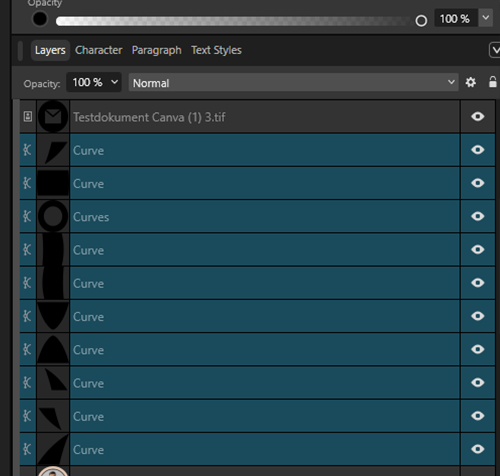
Check your illustrations for subgroups:
- Delete the unnecessary groups
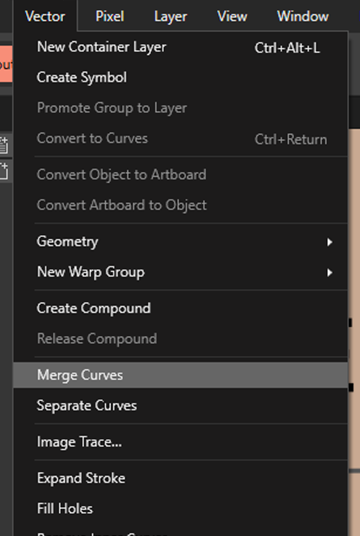
- Merge curves
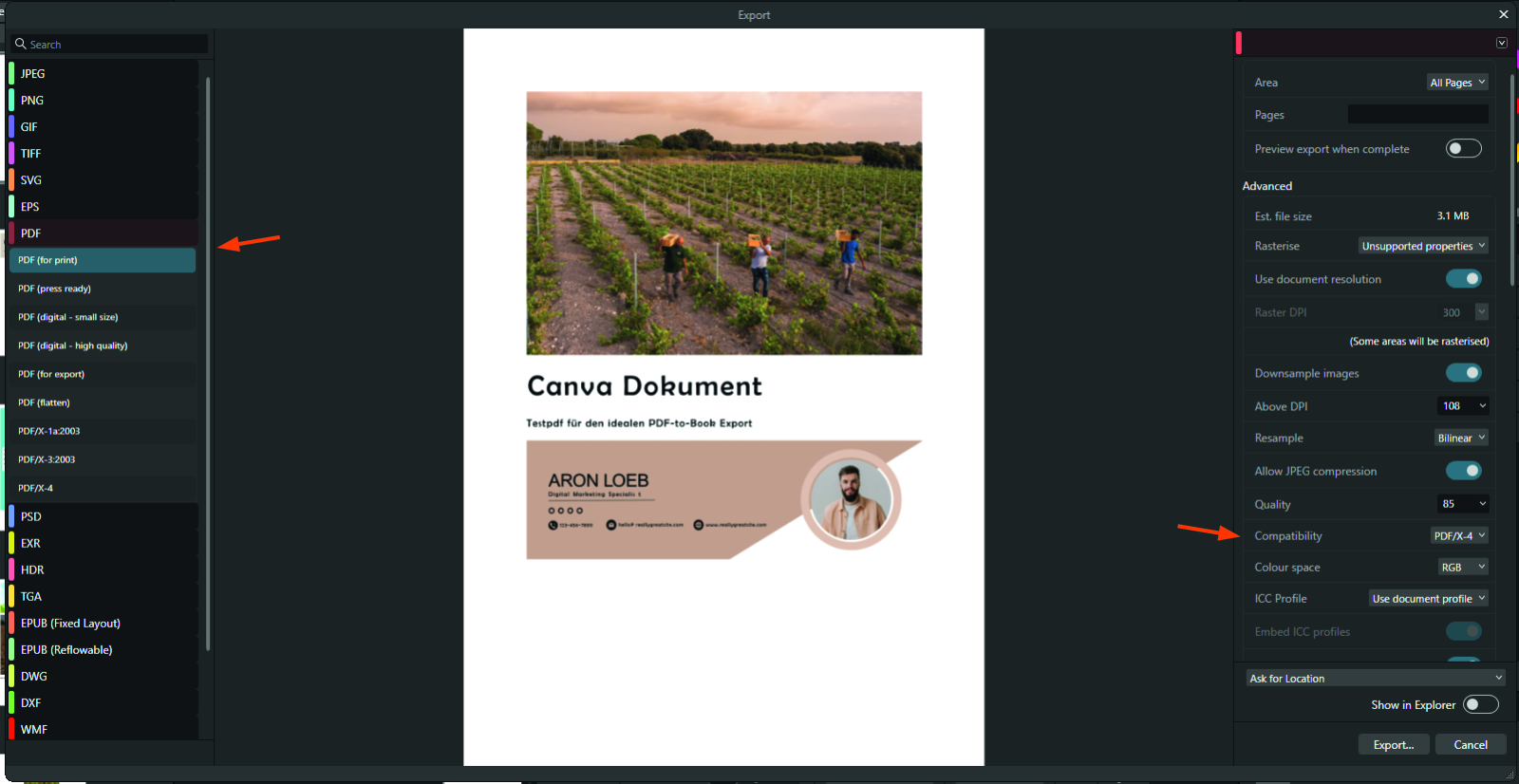
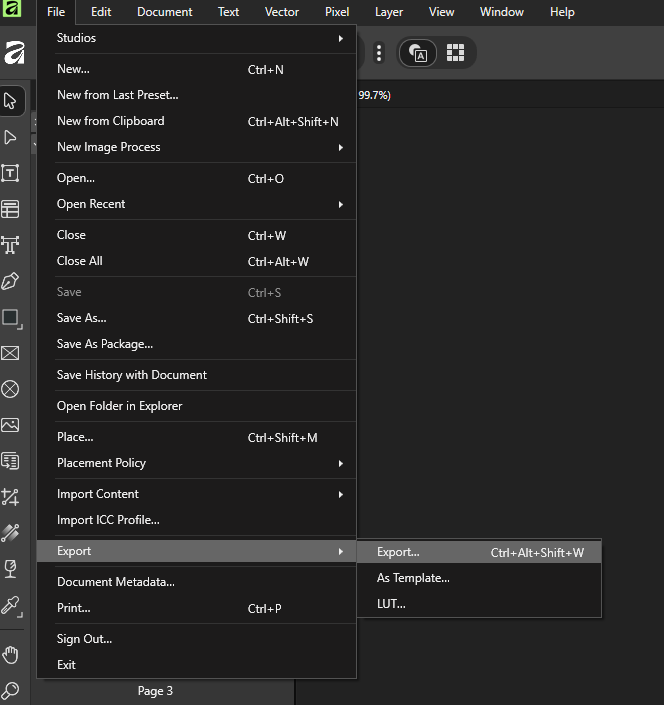
- Go to the Export menu via File - Export - Export...:
-
Export to PDF:
- Left: PDF (Druckerei-fertig)
-
Right:
- Dpi: 300
- PDF/X-4 compatibility
- Color space: CMYK / Profile ISO Coated v2 (ECI)
- Embed fonts: All fonts (enable font subsets)